Prepare your images
Each image is one page. A chapter can contain up to 300 pages and 50 MB; each image can be up to 20 MB and about 25 megapixels.
Select JPG, PNG or WebP images from your device to translate detected Japanese or Korean text into English.
English output · Japanese or Korean detected automatically · 1 credit per page
Real translation example
Use this Japanese before/after pair to compare the speech bubbles, large lettering and surrounding line art. When checking your own images, look beyond the presence of English: small text and the edges of cleared regions also deserve a closer look.
Drag the divider to compare the original and English lettering.
Chainsaw Man ch.1 p.36 · Shueisha / Shōnen Jump+ · MangaFluent translation preview.
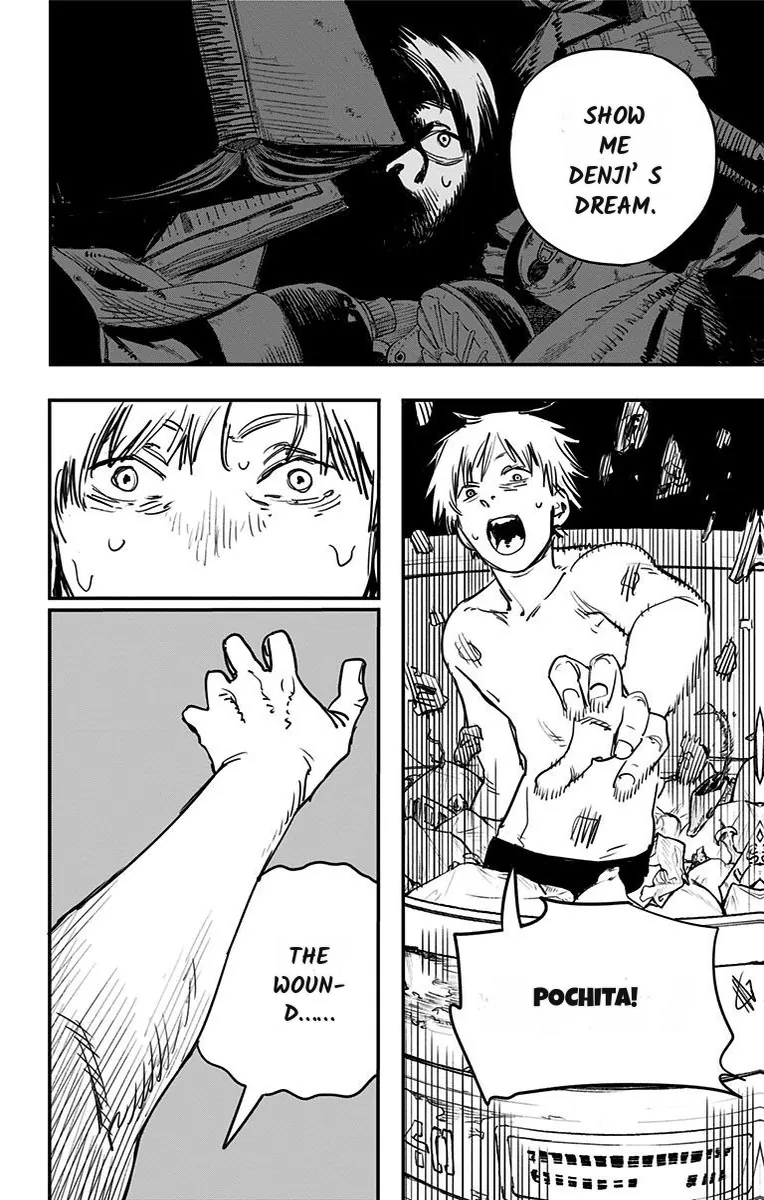
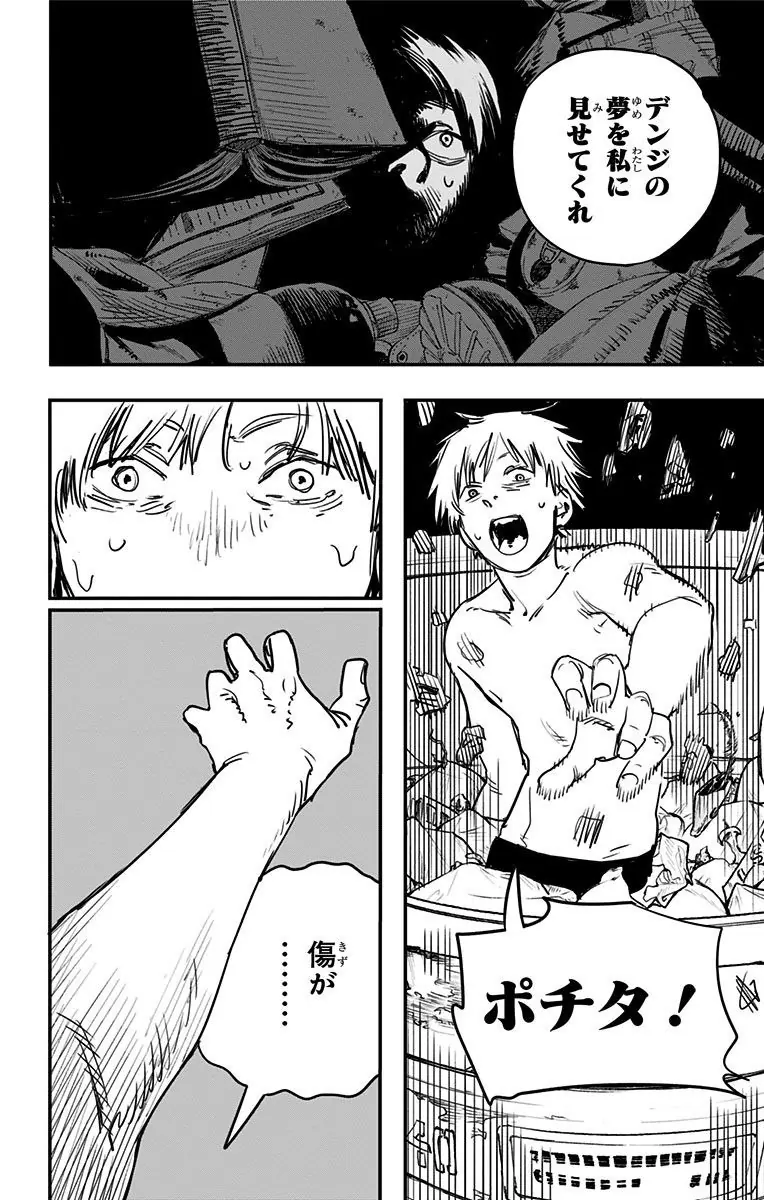
The uploader accepts JPG/JPEG, PNG and WebP images. Use the clearest copy you already have. Converting a blurry screenshot to PNG changes the container, not the detail; repeated lossy saves can make thin strokes harder to read.
Selected images are naturally sorted by filename, so page2.jpg comes before page10.jpg. That rule cannot infer story order from unrelated screenshot names. Give pages a consistent numbered sequence before selecting them.
Loose images are convenient when you need to inspect and remove individual pages. A PDF first becomes page images in your browser. A ZIP or CBZ is inspected as a single chapter archive and must be selected on its own.
The manga translator detects source text regions, clears the lettering and places English text back into the page. Bubble shape, small text and complex backgrounds affect the result. A translated image still needs a visual check before you save the chapter.
This guide helps you prepare and review files. Translation uses the same homepage uploader, with the same limits and one-credit-per-page pricing.
| Your task | Use this guide to | Use the homepage tool to |
|---|---|---|
| Source quality | Check image format, sharpness, pixel count and long strips. | Validate selected files and display any processing warnings. |
| Batch order | Rename loose pages and remove screenshots you do not need. | Show naturally sorted previews, page count and the credit quote. |
| Translation | Compare an image result and know what lettering to review. | Upload after confirmation, translate, then offer the reader and exports. |
Each image is one page. A chapter can contain up to 300 pages and 50 MB; each image can be up to 20 MB and about 25 megapixels.
Open an image preview in the local reader, then check the page count and quote. Files upload only after you press Translate.
Yes. Click a selected image preview to open the local reader; selecting files does not start the upload.
Each physical page costs one credit, regardless of image dimensions. The quote appears before translation.
It can translate text regions the detector finds, including some lettering and effects outside speech bubbles. Handwritten, unusually shaped or highly stylized text can be missed. Review both the wording and the surrounding artwork before exporting.